> ## Documentation Index
> Fetch the complete documentation index at: https://ppio.com/docs/llms.txt
> Use this file to discover all available pages before exploring further.
# Browser-use 接入 PPIO Agent 沙箱
export const SetupApiKeyGuide = () => {
if (typeof document === "undefined") {
return null;
} else {
return <>
如果您之前没有 PPIO 账号,请先 注册 PPIO 平台账号,详情请参考 新手指引。注册完成后,通过 PPIO API 密钥管理 页面,您可以创建 API 密钥并保存好用于后续步骤。
;
}
};
[Browser-Use](https://github.com/browser-use/browser-use) 是一个强大的 AI 浏览器 Agent。结合 PPIO Agent 沙箱提供的安全隔离环境,您可以构建高并发、多任务的浏览器 AI Agent。
本文档将详细介绍如何基于 PPIO Agent 沙箱服务来运行 Browser-use 项目。
文档中使用了 PPIO 官方发布的 `browser-chromium` 沙箱模板。如果您想基于此制作自己的模板,或者查看更完整的示例代码,请参考[这里](https://github.com/ppinfralab/PPIO-collab/tree/main/examples/browser-use)。
### 1. 获取 PPIO API 密钥
### 2. 配置环境变量
在开始使用之前,您需要配置必要的环境变量:
```bash theme={null}
export E2B_DOMAIN=sandbox.ppio.cn
export E2B_API_KEY=<您的 PPIO API 密钥>
export PPIO_API_KEY=<您的 PPIO API 密钥>
export LLM_BASE_URL=https://api.ppio.com/openai
export LLM_MODEL=<您选用的大语言模型>
```
### 3. 安装依赖
安装所需的 Python 包:
```python theme={null}
pip install browser-use
pip install ppio-sandbox
```
### 4. 示例代码
```python theme={null}
import asyncio
import os
import time
import base64
from browser_use import Agent, BrowserSession
from browser_use.llm import ChatOpenAI
from ppio_sandbox.code_interpreter import Sandbox
async def screenshot(agent: Agent):
# 截图功能
print("开始截图...")
page = await agent.browser_session.get_current_page()
screenshot_base64 = await page.screenshot(format='png')
# screenshot 方法返回图像的 base64 字符串,将其转换为二进制数据并保存为 PNG 文件
screenshot_bytes = base64.b64decode(screenshot_base64)
screenshots_dir = os.path.join(".", "screenshots")
os.makedirs(screenshots_dir, exist_ok=True)
screenshot_path = os.path.join(screenshots_dir, f"{time.time()}.png")
with open(screenshot_path, "wb") as f:
f.write(screenshot_bytes)
print(f"截图已保存至 {screenshot_path}")
async def main():
# 创建沙箱实例
sandbox = Sandbox.create(
timeout=600, # 超时时间(秒)
template="browser-chromium", # 该模板包含 chromium 浏览器,且暴露 9223 端口用于远程连接
)
try:
# 获取沙箱的 Chrome 调试端口地址
host = sandbox.get_host(9223) # 获取沙箱 9223 端口的地址
cdp_url = f"https://{host}"
print(f"Chrome 调试协议地址: {cdp_url}")
# 创建 Browser-use 会话
browser_session = BrowserSession(cdp_url=cdp_url) # 使用 cdp 协议连接远程沙箱中的浏览器
await browser_session.start()
print("Browser-use 会话创建成功")
# 创建 AI Agent
agent = Agent(
task="去百度搜索 Browser-use 的相关信息,并总结出 3 个使用场景",
llm=ChatOpenAI(
api_key=os.getenv("PPIO_API_KEY"),
base_url=os.getenv("LLM_BASE_URL"),
model=os.getenv("LLM_MODEL"),
temperature=1
),
browser_session=browser_session,
)
# 运行 Agent 任务
print("开始执行 Agent 任务...")
await agent.run(
on_step_end=screenshot, # 在每个步骤结束时调用 screenshot 截图
)
# 关闭浏览器会话
await browser_session.stop()
print("任务执行完成")
finally:
# 清理沙箱资源
sandbox.kill()
print("沙箱资源已清理")
if __name__ == "__main__":
asyncio.run(main())
```
### 5. 运行示例
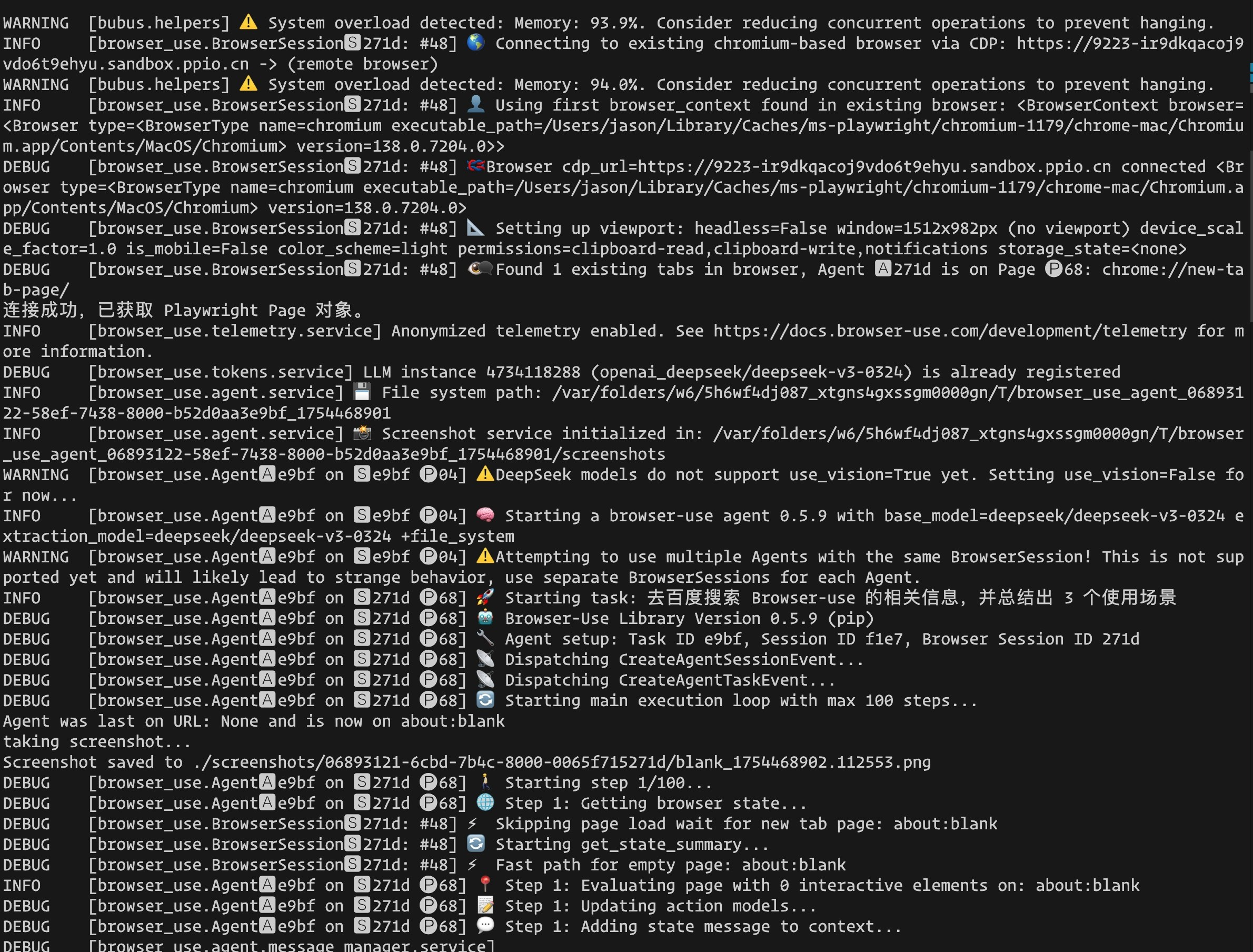
安装依赖并设置环境变量后,您可以运行示例代码。如果一切顺利,您可以在终端看到像这样的输出。可以看到 Browser-use 在使用沙箱中的浏览器执行任务。
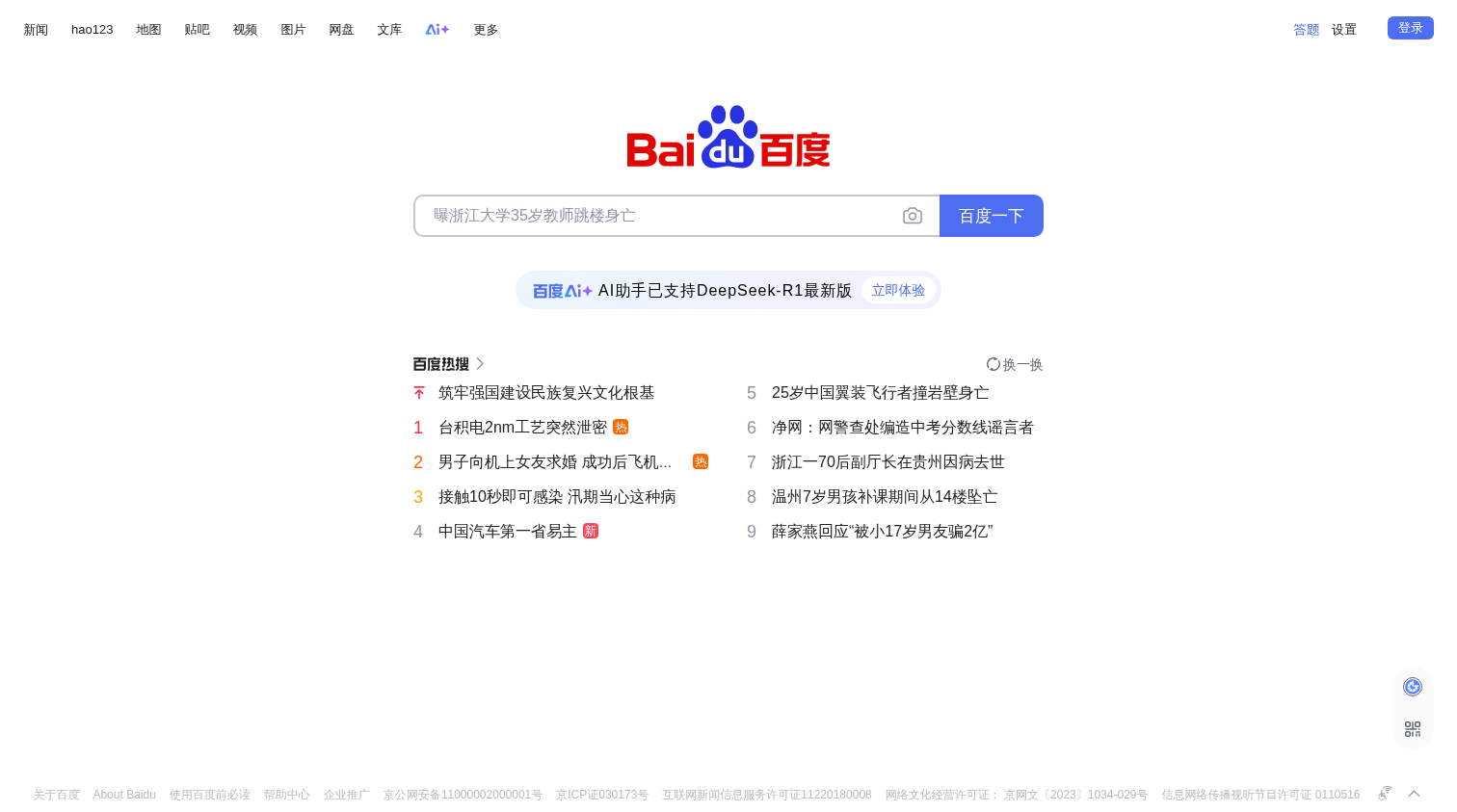
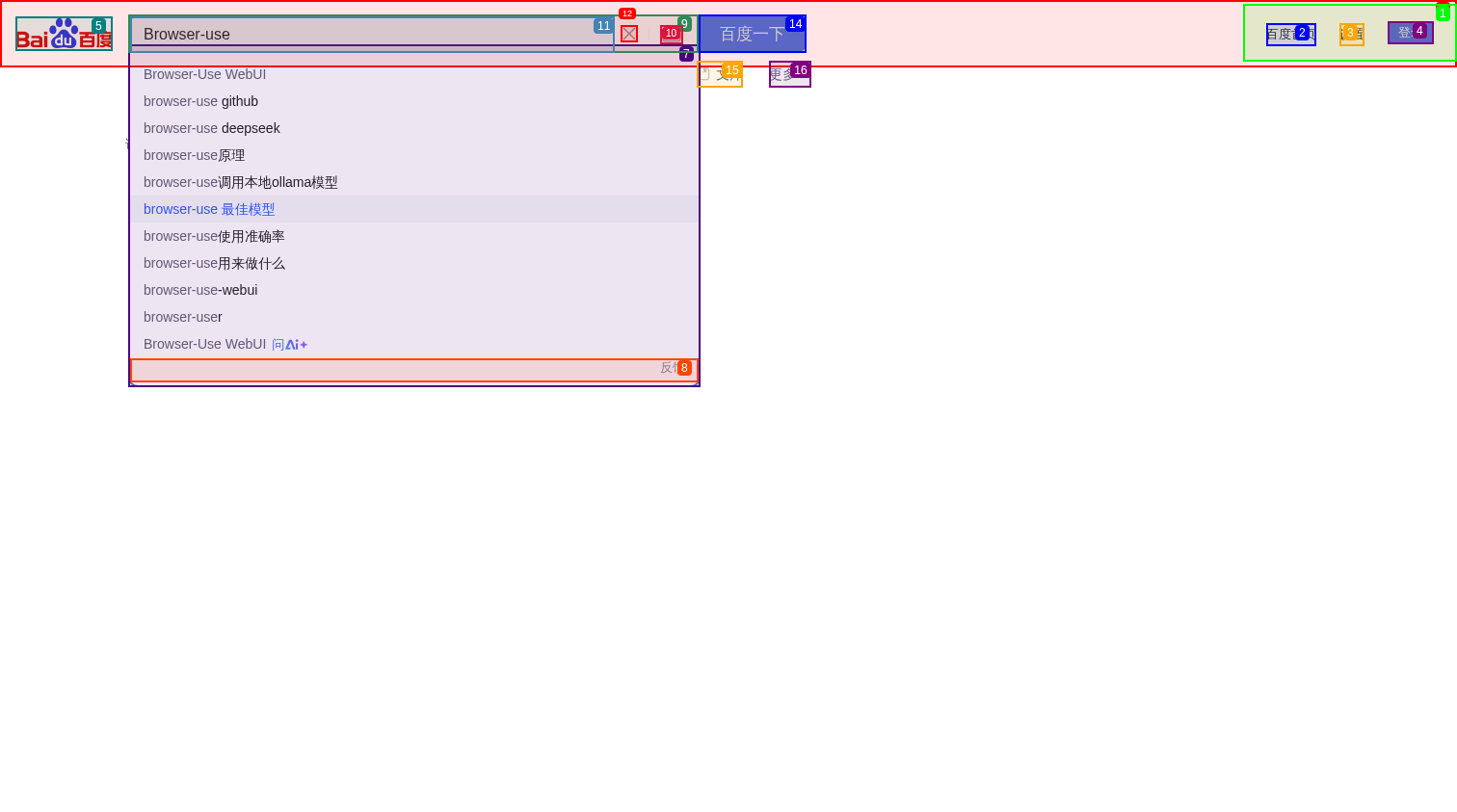
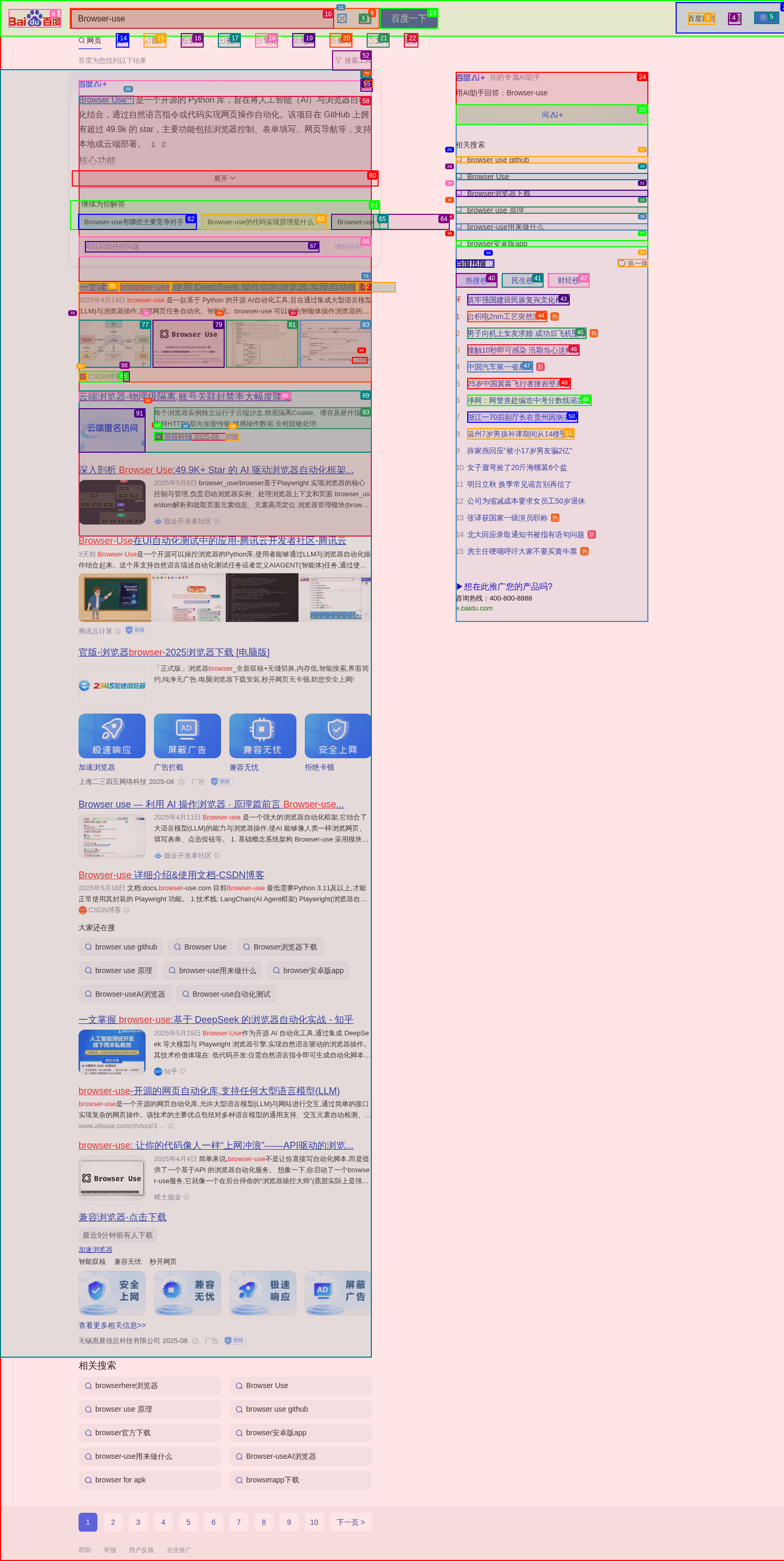
 可以产生如下截图:
 更完整的可运行示例请参考[这里](https://github.com/ppinfralab/PPIO-collab/tree/main/examples/browser-use)。