> ## Documentation Index
> Fetch the complete documentation index at: https://ppio.com/docs/llms.txt
> Use this file to discover all available pages before exploring further.
# WPS Office AI 接入 PPIO LLM API
## 教程概述
现在 WPS 不仅能编辑文档,还能帮你一键生成报告、提取关键信息,甚至智能问答?现在,通过 Office AI 插件接入 PPIO 大语言模型 API,这一愿望已经成为现实!借助 DeepSeek 模型的强大能力,你可以让 WPS 秒变 AI 助手,工作效率直接开挂!
DeepSeek 系列模型功能强大,能够满足多种智能需求。无论是合同解析、论文摘要,还是数据提取,DeepSeek 都能轻松应对,成为你的智能办公利器。想象一下,面对一份复杂的合同,只需一键即可提取关键条款;面对一篇冗长的论文,瞬间生成精准摘要;面对杂乱的数据表格,快速提取核心信息——这些场景不再是想象,而是 DeepSeek 带给你的日常办公体验。
而 PPIO 优化后的 API 通道,响应速度极快,稳定性极高,确保流畅的使用体验。无论是处理大型文档还是进行高频次问答,PPIO 都能为你提供高效、稳定的支持,让你的办公效率再上一个台阶。
下方教程包含完整接入方案(含密钥配置),3 分钟开启「WPS Office AI 插件 + PPIO 高性能 API」的进阶模式 ▶
## 1. 下载安装 WPS 第三方插件 Office AI 插件
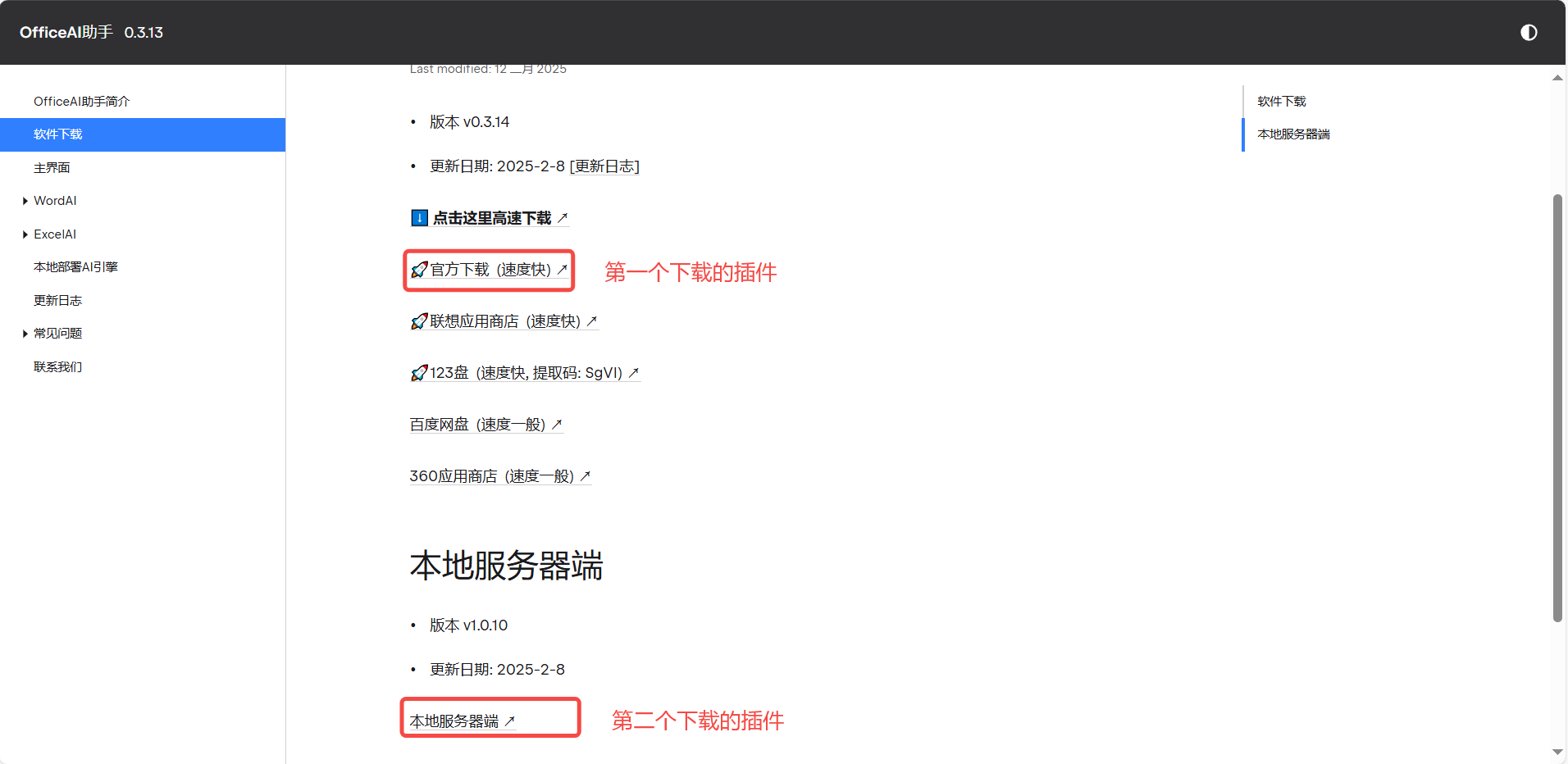
(1)访问官方网站 [https://www.office-ai.cn/。](https://www.office-ai.cn/。)
(2)下载以下两个插件:OfficeAI.exe 和 OfficeAI\_Server.exe
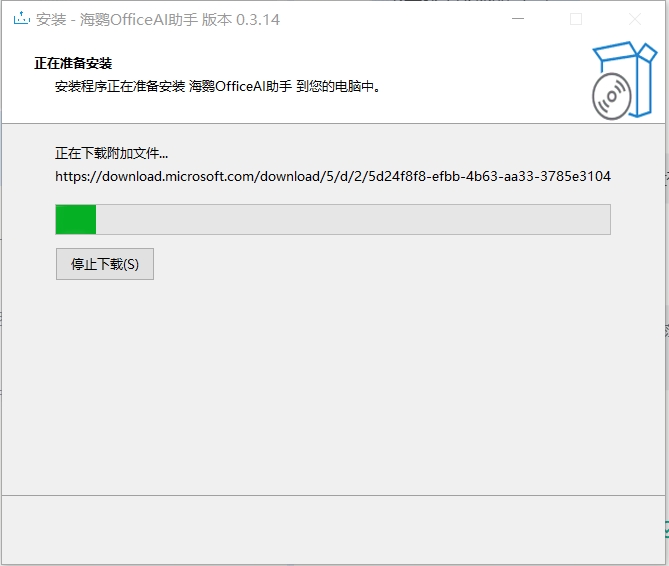
 (3)安装插件
 ## 2. 配置前置条件
(1)**获取 API 接口地址**: `https://api.ppio.com/openai`。
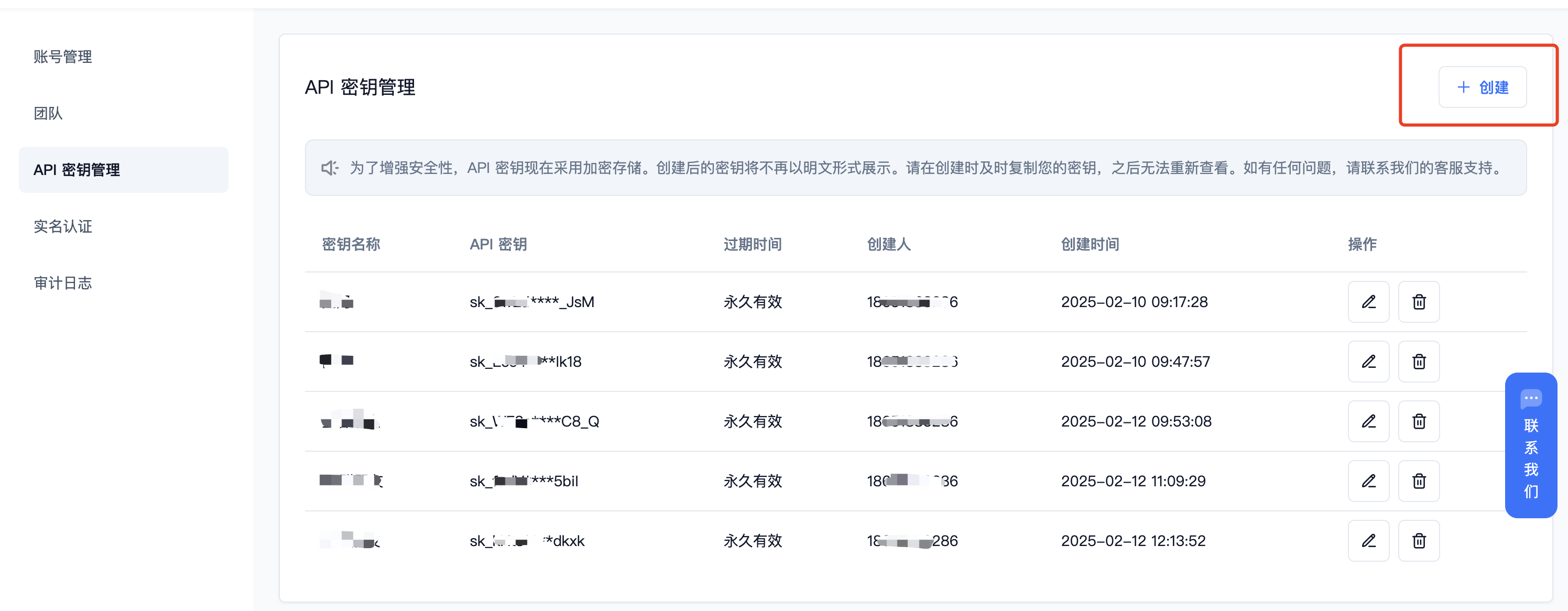
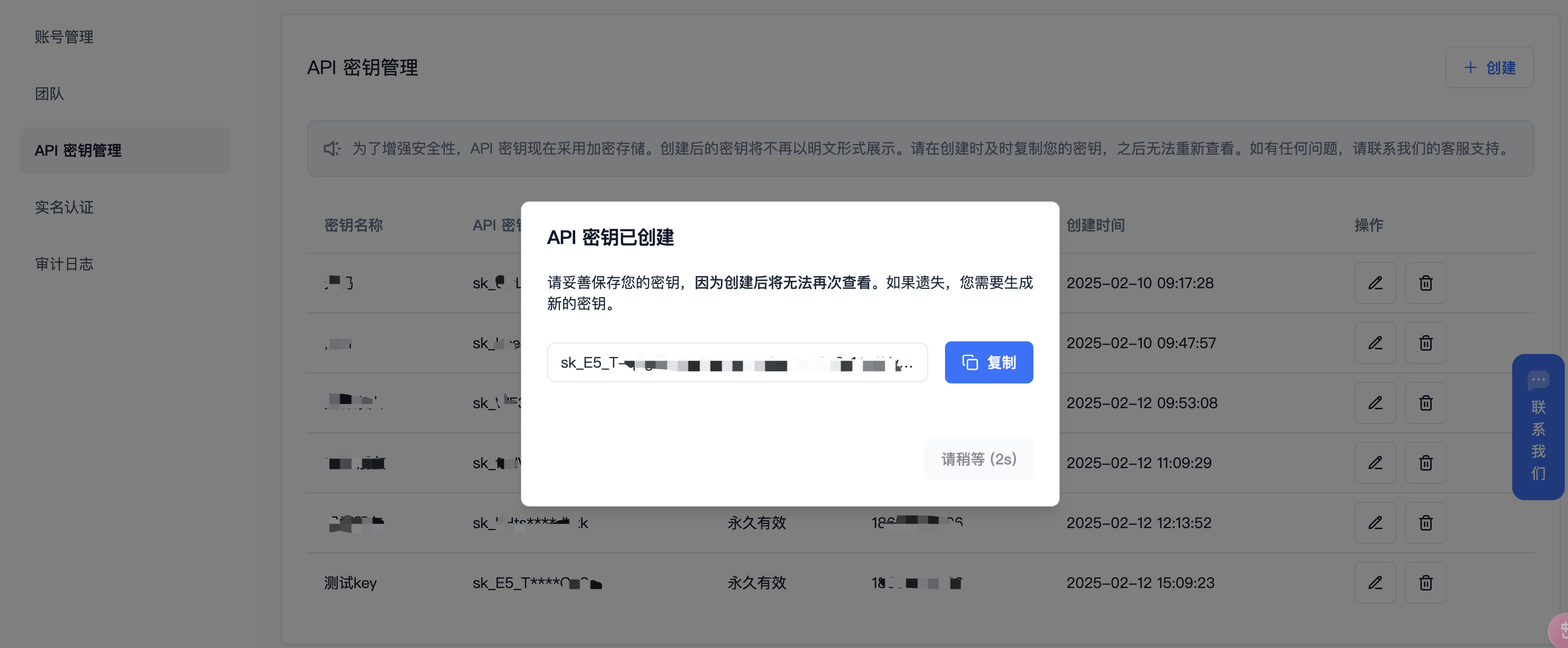
(2)登录派欧云控制台 [API 秘钥管理](https://ppio.com/settings/key-management) 页面,点击创建按钮。
## 2. 配置前置条件
(1)**获取 API 接口地址**: `https://api.ppio.com/openai`。
(2)登录派欧云控制台 [API 秘钥管理](https://ppio.com/settings/key-management) 页面,点击创建按钮。
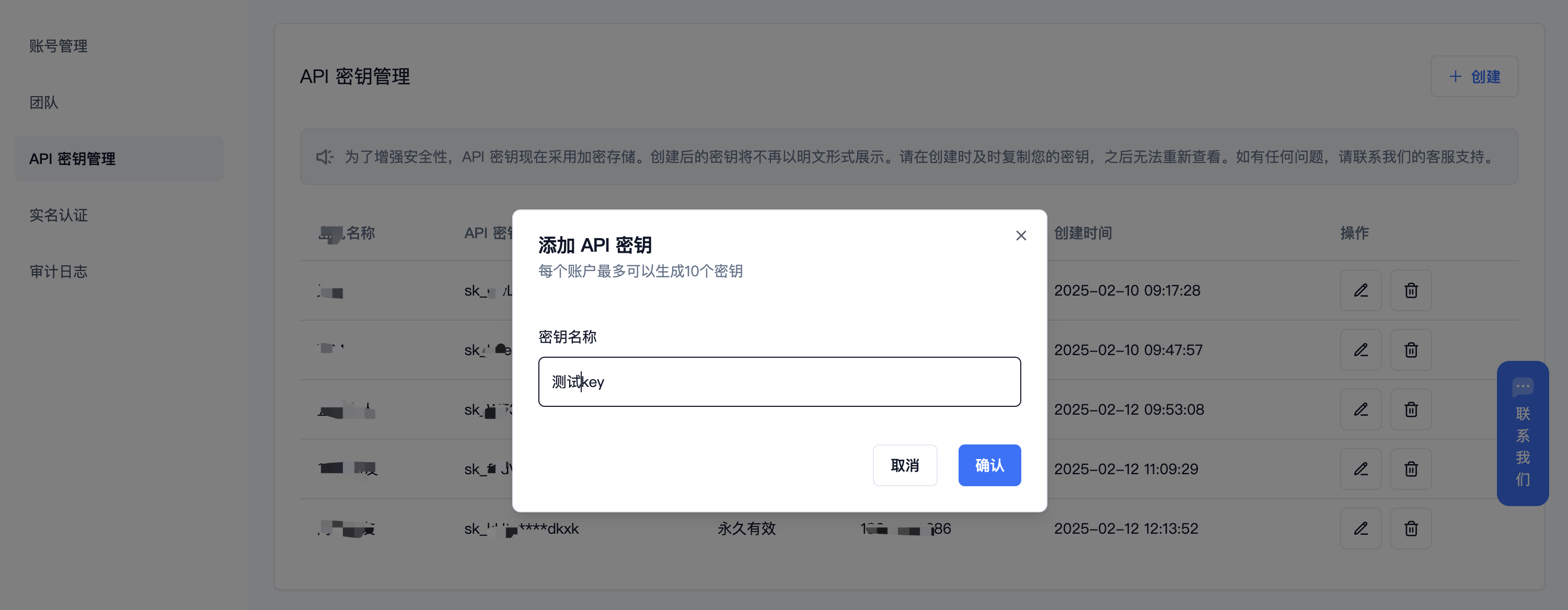
 (3)生成并保存 API 秘钥
秘钥在服务端是加密存储,请在生成时保存好秘钥;若遗失可以在控制台上删除并创建一个新的秘钥。
(3)生成并保存 API 秘钥
秘钥在服务端是加密存储,请在生成时保存好秘钥;若遗失可以在控制台上删除并创建一个新的秘钥。
 (3)获取需要使用的模型 ID。**推荐 DeepSeek 系列模型:**
* DeepSeek R1:deepseek/deepseek-r1/community
* DeepSeek V3:deepseek/deepseek-v3/community
其他模型 ID 及价格可参考:[模型列表](https://ppio.com/model-api/pricing)。
## 3. 插件配置
(1)打开 WPS,点击工具栏中的 “OfficeAI” 图标。在弹出的窗口中,找到并点击 “设置”。
(3)获取需要使用的模型 ID。**推荐 DeepSeek 系列模型:**
* DeepSeek R1:deepseek/deepseek-r1/community
* DeepSeek V3:deepseek/deepseek-v3/community
其他模型 ID 及价格可参考:[模型列表](https://ppio.com/model-api/pricing)。
## 3. 插件配置
(1)打开 WPS,点击工具栏中的 “OfficeAI” 图标。在弹出的窗口中,找到并点击 “设置”。
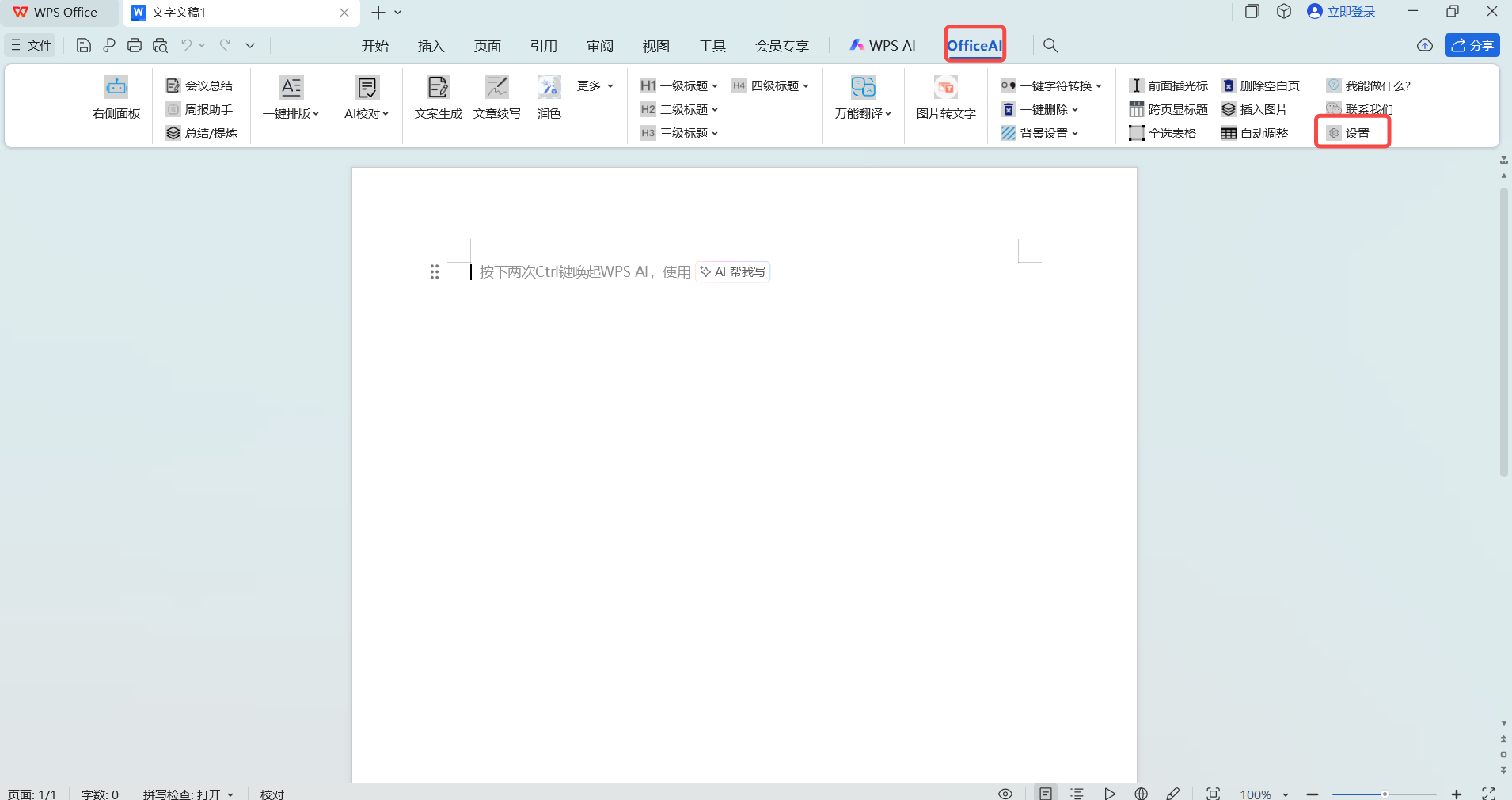 (2)在设置界面中,依次选择:“大模型设置”,“本地模型/API-KEY”,选择 “ApiKey” 选项。
(3)在下拉菜单中,选择 “自定义(OpenAI 协议)”。
(2)在设置界面中,依次选择:“大模型设置”,“本地模型/API-KEY”,选择 “ApiKey” 选项。
(3)在下拉菜单中,选择 “自定义(OpenAI 协议)”。
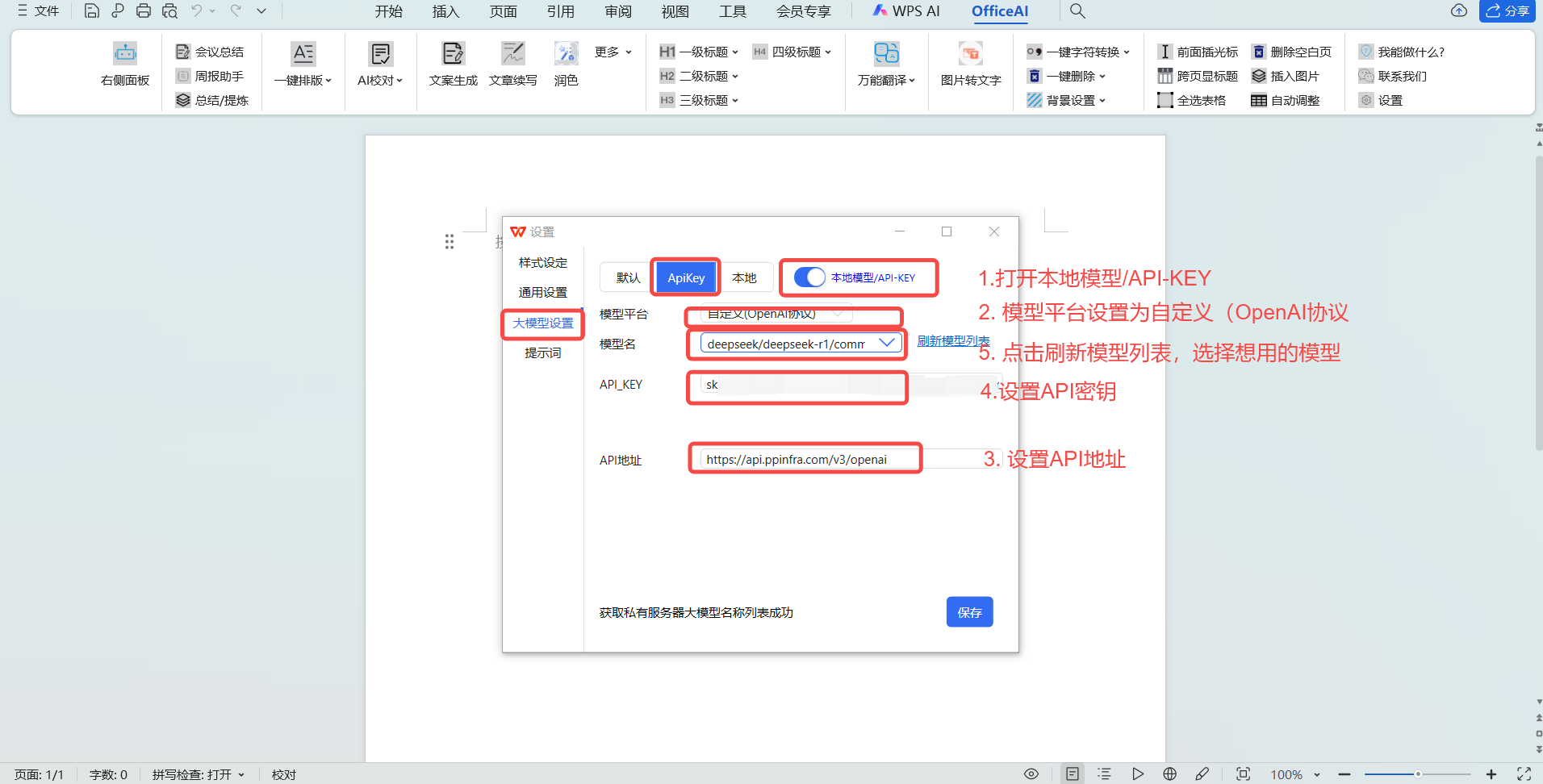 (4)测试效果。
 ## PPIO 全新福利重磅来袭 🔥
🎁 新人专享:立即使用邀请码【VOJL20】完成注册并实名认证获得5元代金券。
🎉限时活动:分享邀请链接邀请好友注册,邀请返利详情请查看 [邀请返利](https://ppio.com/settings/invitation-rebate)。
## PPIO 全新福利重磅来袭 🔥
🎁 新人专享:立即使用邀请码【VOJL20】完成注册并实名认证获得5元代金券。
🎉限时活动:分享邀请链接邀请好友注册,邀请返利详情请查看 [邀请返利](https://ppio.com/settings/invitation-rebate)。